Inhaltsverzeichnis
Position markers
You work with position markers in various tools (e.g. at Room measurement ). These are markers that you can anchor in MRplugin-autotooltip__default plugin-autotooltip_bigMixed Reality (MR)
Mixed reality, often referred to as mixed reality, is a technology that combines the physical world with computer-generated elements in real time. In contrast to pure virtual reality, in which the user is completely immersed in a digital world, and augmented reality, in which digital elements are superimposed on the real world, mixed reality enables interaction between real and virtual objects. As a rule, the user sees the real world, recorded by cameras, as an image of their… in real space.
Position markers are used to anchor objects in space (example: Conservatory ), to measure distances (example: Room measurement ) or to interact with the space around you.
Setting position markers
The tool must be active, i.e. there is a green tick in the tool menu.
You can set a position marker by clickplugin-autotooltip__default plugin-autotooltip_bigClick
Depending on the device, clicking is the user's action to select an element. On devices with a mouse, this means pointing at the element and pressing the left mouse button. For devices with a touchscreen, it is touching or touching and holding (iOS: long touch). In theing the action button on the Headset controller
- button brieflyThe marker is placed directly on the controller.
- long press: The marker is placed at the end of the laser beam. This allows you to place markers in places where you cannot reach with your arm.
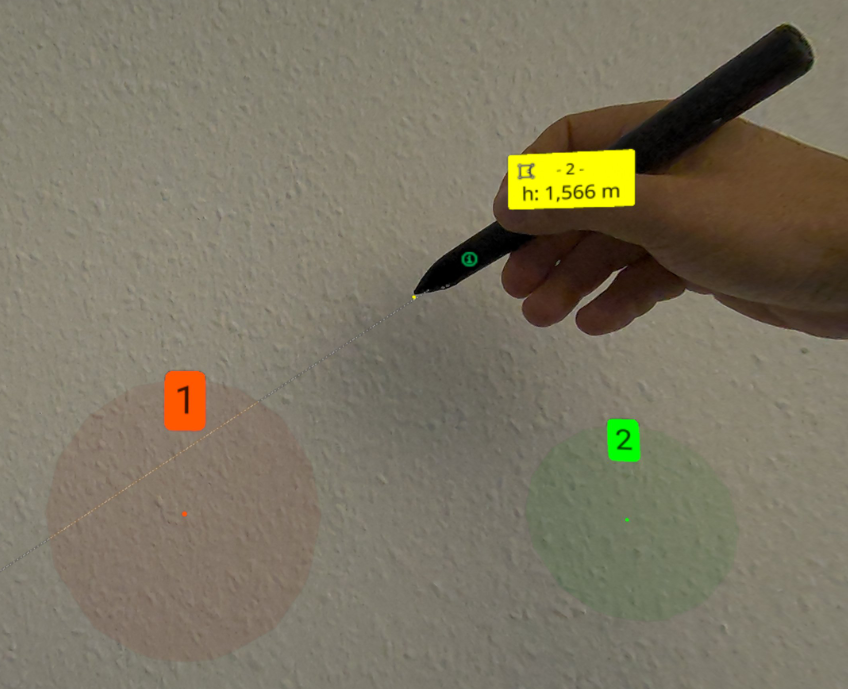
A position marker marks a position in the world in three-dimensional space. Depending on the vrdoro tool that you use, you will see a label on the position marker and information and interaction options will be displayed in the context menu of the position marker.
If you point the raycaster over a position marker, it will turn orange and the glow will become slightly larger.
We then say: The position marker is aimed at.
In the picture you see 2 position markers: Marker 1 is targeted.
Open context menu
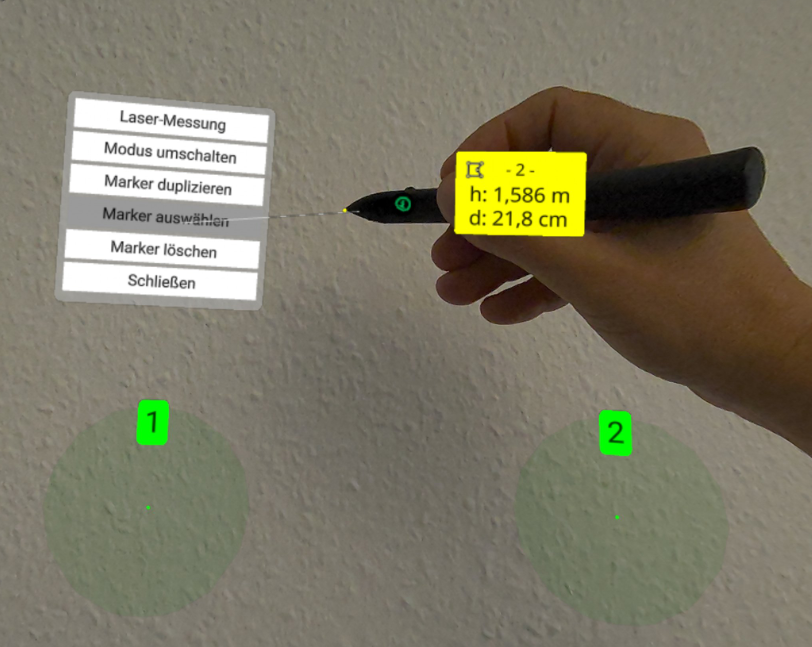
You can perform further actions with the position marker (depending on the vrdoro tool you are currently using) by pointing to the marker with the pen - it will then turn orange - and then briefly pressing the action button.
Recording and moving position markers
- Picking up markers: Hold the laser beam on the marker (it will turn orange) and long press the rear button. The marker then jumps to the tip of the pen and remains there until you set it down again.
- Placing or removing markers: Press briefly to place a marker at the tip of the pen. Press and hold to place the marker where the laser cuts the floor. This is where the white circle appears.
Picking up and moving connections
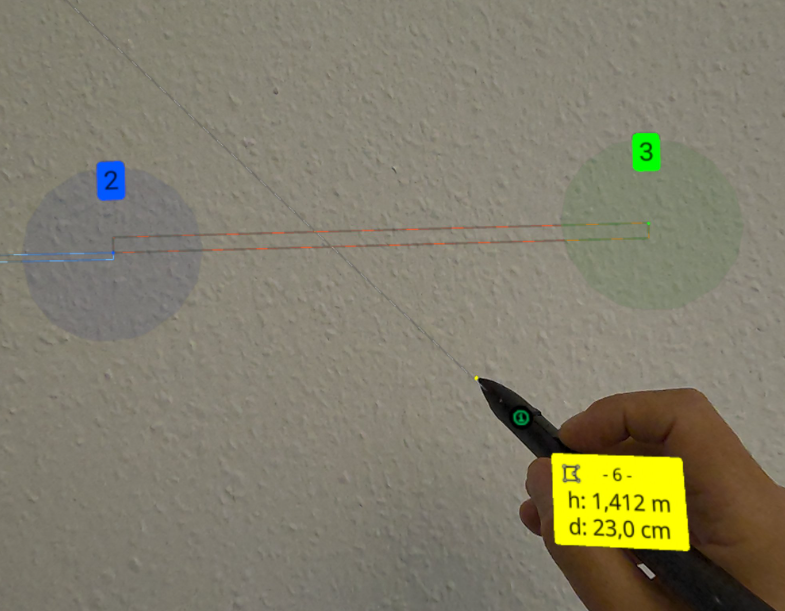
If you select this marker via the context menu of a position marker, it is displayed in blue. In addition, the lines that connect this position marker with another marker are displayed in light blue. The line now behaves like a marker: if you aim at the line, it turns orange.
You can then move a targeted line by pressing and holding the action button on the Pen controllermove. Moving the line automatically inserts two new points. You can use this function to move the reveal niche out precisely on a floor-to-ceiling window. The line is always parallel to the original line line.
You can also move the line from a distance. The line is then moved in line with the change in position of the pen tip. A three-dimensional box is displayed for the change in position of the pen tip, with each side showing how large the deviation from the original position is.
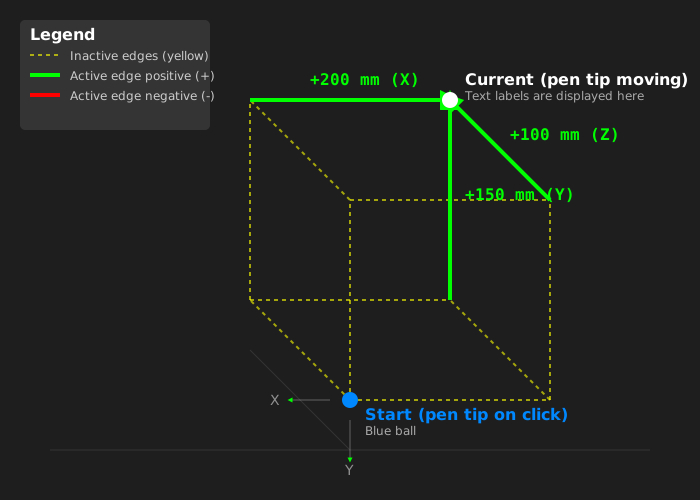
This is how the remote move box works:
- Starting point (blue ball): Is set exactly where the pen tip of the controller is at the moment of gripping (clickplugin-autotooltip__default plugin-autotooltip_bigClick
Depending on the device, clicking is the user's action to select an element. On devices with a mouse, this means pointing at the element and pressing the left mouse button. For devices with a touchscreen, it is touching or touching and holding (iOS: long touch). In the). - Current point (white dot): The current position of the pen tip in real time during the movement.
- Yellow lines: Draw a spatial box between the starting point and the current pen tip to make it easier to see the depth.
- Coloured edges (green/red): Only the three edges that converge directly at the current pen tip light up in colour.
- Green: The pen tip has moved in this direction (e.g. forwards, upwards or to the right).
- Red: The pen tip has moved in the opposite direction.
- Value labels: The dimensions (e.g. “+150 mm”) always accompany the current pen tip and sit firmly on the illuminated edges.