This is an old revision of the document!
vrdoro visualizer quick start
After booking a visualizer licence plan (https://vrdoro.com/pricing/) we will create an area for you, to which you will receive access from us. Alternatively, you can create your own area before booking by registering at registration yourself.
Table of Contents
Setting up the headset
If you still need to set up your headset, follow the instructions under Setting up the headset.
Functions of the headset
Please take a look at Tips for the headset and follow the recommendations given.
Your projects
If you book a single 3D configurator without measurement, you can skip this chapter.
With the booking of a Lizenz you will receive a number of projects, depending on your licence plan. The projects contain the tools you have booked. All the data you collect is saved in the projects. In the case of surveying tools, for example, this includes the measurement results.
Logging in to the vrdoro-editor
The vrdoro-visualiser is a web platform that you can access via URLs. The vrdoro-editor is the project management. You use it to manage and open your visualiser projects.
To do this, log in here on your desktop computer or notebook in a Chrome browser: https://vrdoro.com/editor/
After logging in, you will see information about your licence and projects in your dashboard:
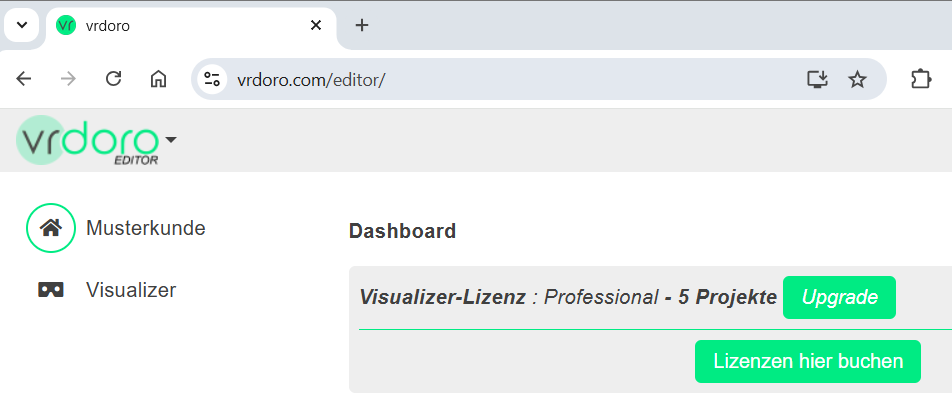
(Clickplugin-autotooltip__default plugin-autotooltip_bigClick
Depending on the device, clicking is the user's action to select an element. On devices with a mouse, this means pointing at the element and pressing the left mouse button. For devices with a touchscreen, it is touching or touching and holding (iOS: long touch). In the on the image to enlarge it)
Project overview
When selecting the menu item visualiser menu item, you will see your projects and can open a project by selecting it.
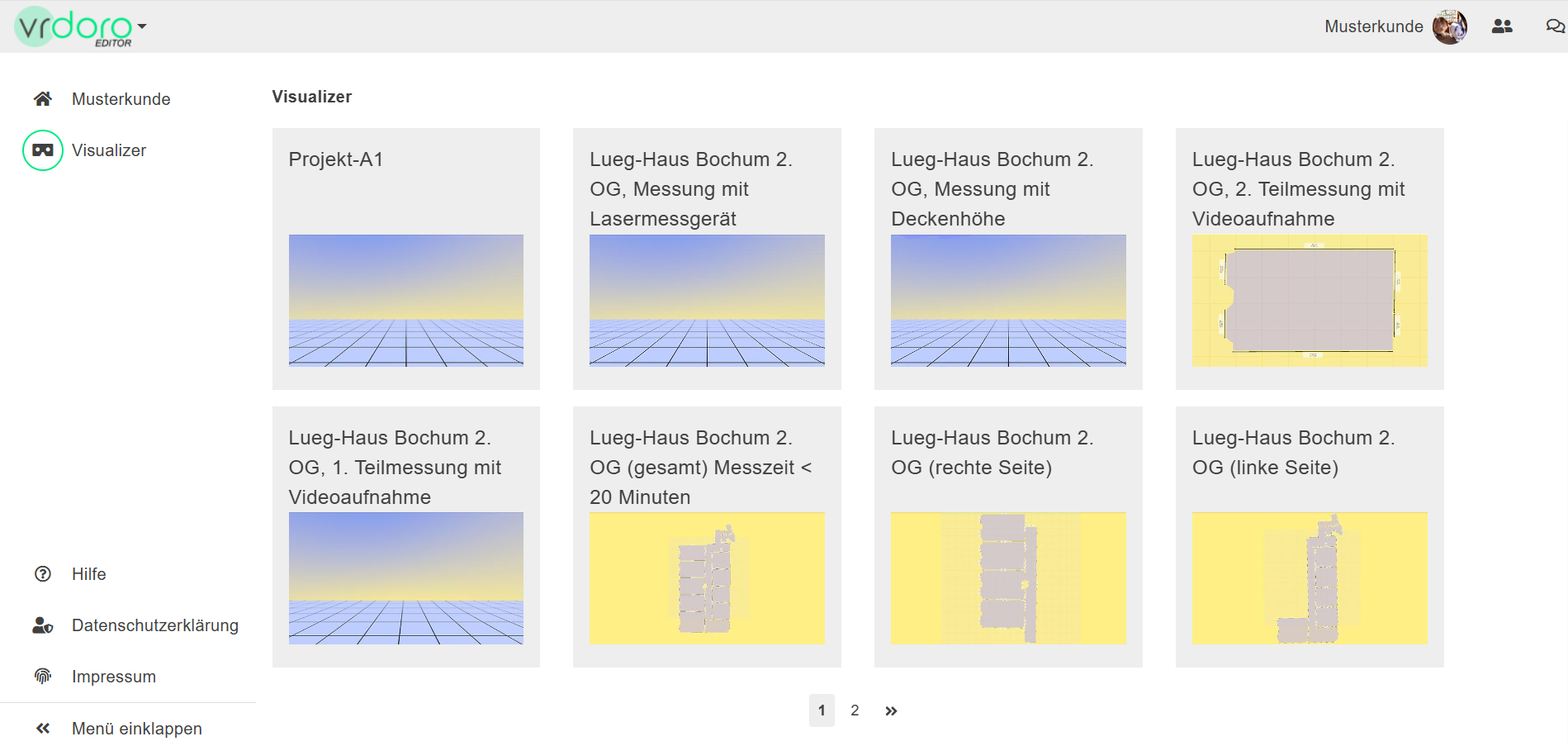
(Clickplugin-autotooltip__default plugin-autotooltip_bigClick
Depending on the device, clicking is the user's action to select an element. On devices with a mouse, this means pointing at the element and pressing the left mouse button. For devices with a touchscreen, it is touching or touching and holding (iOS: long touch). In the on the image to enlarge it)
Display projects in the headset
To display a project in the headset, follow these steps:
- Log in to https://vrdoro.com/editor/
- Select a project
Create bookmarks in the headset browser for these URLs.
Once you are logged in, you can also, from your desktop computer, clickplugin-autotooltip__default plugin-autotooltip_bigClick
Depending on the device, clicking is the user's action to select an element. On devices with a mouse, this means pointing at the element and pressing the left mouse button. For devices with a touchscreen, it is touching or touching and holding (iOS: long touch). In the on the Share icon the item 
Web-Launch to open the project directly in the headset browser.
Operation in mixed reality (MR)
In mixed reality, you can see your surroundings through the headset's cameras when the headset is on. Virtual objects are also displayed. All virtual objects without transparency obscure the real view, regardless of their virtual distance.
Start in mixed reality
To access the mixed reality view from your project, there is often a 'Get started now' button. If this is not available, such as in the configurators, you can clickplugin-autotooltip__default plugin-autotooltip_bigClick
Depending on the device, clicking is the user's action to select an element. On devices with a mouse, this means pointing at the element and pressing the left mouse button. For devices with a touchscreen, it is touching or touching and holding (iOS: long touch). In the on the glasses icon in the Menu bar clickplugin-autotooltip__default plugin-autotooltip_bigClick
Depending on the device, clicking is the user's action to select an element. On devices with a mouse, this means pointing at the element and pressing the left mouse button. For devices with a touchscreen, it is touching or touching and holding (iOS: long touch). In the on it. Then select 'Start MRplugin-autotooltip__default plugin-autotooltip_bigMixed Reality (MR)
Mixed reality, often referred to as mixed reality, is a technology that combines the physical world with computer-generated elements in real time. In contrast to pure virtual reality, in which the user is completely immersed in a digital world, and augmented reality, in which digital elements are superimposed on the real world, mixed reality enables interaction between real and virtual objects. As a rule, the user sees the real world, recorded by cameras, as an image of their…' in the dialogue.
As you have no limit (see here) you will see a message from the headset at the beginning “Create new free space limitation?”. Just don't react to it, the message will disappear after about 10 seconds.
Switching between MR tool and browser
To switch between the mixed reality view and the browser in the headset press twice briefly (like a double-clickplugin-autotooltip__default plugin-autotooltip_bigClick
Depending on the device, clicking is the user's action to select an element. On devices with a mouse, this means pointing at the element and pressing the left mouse button. For devices with a touchscreen, it is touching or touching and holding (iOS: long touch). In the) on the  meta button on your controller.
Menu and help area
The operation of the menu differs between Headset controller and Pen controller .
Standard controller
You open the menu using the menu button on the left-hand side. Headset controller. Select the menu items with the laser beam on the right-hand controller: They are highlighted. If you select this item with the button under the index finger on the right-hand controller, you trigger the action.
 Switch on the menu: Briefly press the menu button on the left controller to show the menu.
Switch off the menu: Briefly press the menu button on the left-hand controller to switch off the menu.
Select menu item: Point the laser beam of the right Headset controller point to the menu item and briefly press the front button with your index finger.
Pen controller
The menus and the help area, as well as all dialogues that appear in front of you in MRplugin-autotooltip__default plugin-autotooltip_bigMixed Reality (MR)
Mixed reality, often referred to as mixed reality, is a technology that combines the physical world with computer-generated elements in real time. In contrast to pure virtual reality, in which the user is completely immersed in a digital world, and augmented reality, in which digital elements are superimposed on the real world, mixed reality enables interaction between real and virtual objects. As a rule, the user sees the real world, recorded by cameras, as an image of their…, are operated with the front button on the Pen controller
button:
Switch on menu: Press the front pen button briefly to show the menu.
Switch off the menu: Point the laser beam not on the menu and briefly press the front pen button.
Select menu item: Point the laser beam at the menu item and press the front pen button briefly.
The following applies when operating with the Pen controller :
- Every dialogue (menus, confirmation dialogues, selection of tools and texturesplugin-autotooltip__default plugin-autotooltip_bigTexture
A texture is an image that is displayed on the surface of a virtual body in order to change the surface properties such as colour, roughness, metalness, normal vectors and others.) that appears in front of you is operated with the front pen button - Every other action is carried out using the rear pen button (not the meta button)
Basic help functions
You can find out more about using help in the menu here: Help display
You therefore always operate the help and all dialogue with the front button on Pen controller . All other actions, such as working with the position markers, are operated with the rear button.
MR tools
Using position markers
Position markers are used in all measurement tools. The video shows:
- how to set position markers
- opening the context menu
- how to record position markers
Using a tool multiple times in a project
Each tool can be added multiple times in a project. Example: You want to measure a floor with the “Room measurement” tool. There are two ways to do this.
Measuring a floor: in one piece
You go through them all one after the other when measuring. You then obtain a continuous room for the entire floor:
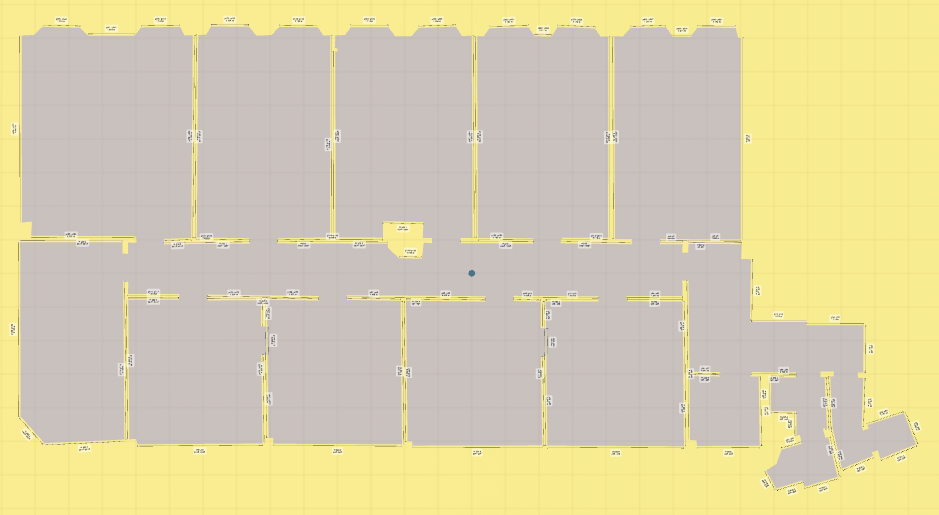
Advantage:
- Simple
Disadvantages:
- All data is collected without room differentiation
- You cannot measure different room heights or floor levels
- You can only visualise one floor covering
Measuring a floor: room by room
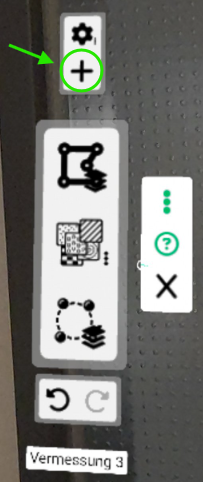
You measure a room and then - from the main menu, as shown in the picture - add the next room using the '+' icon in the main menu. The tool is activated directly and you then measure this room. You can now switch between these rooms and see all the data separately.
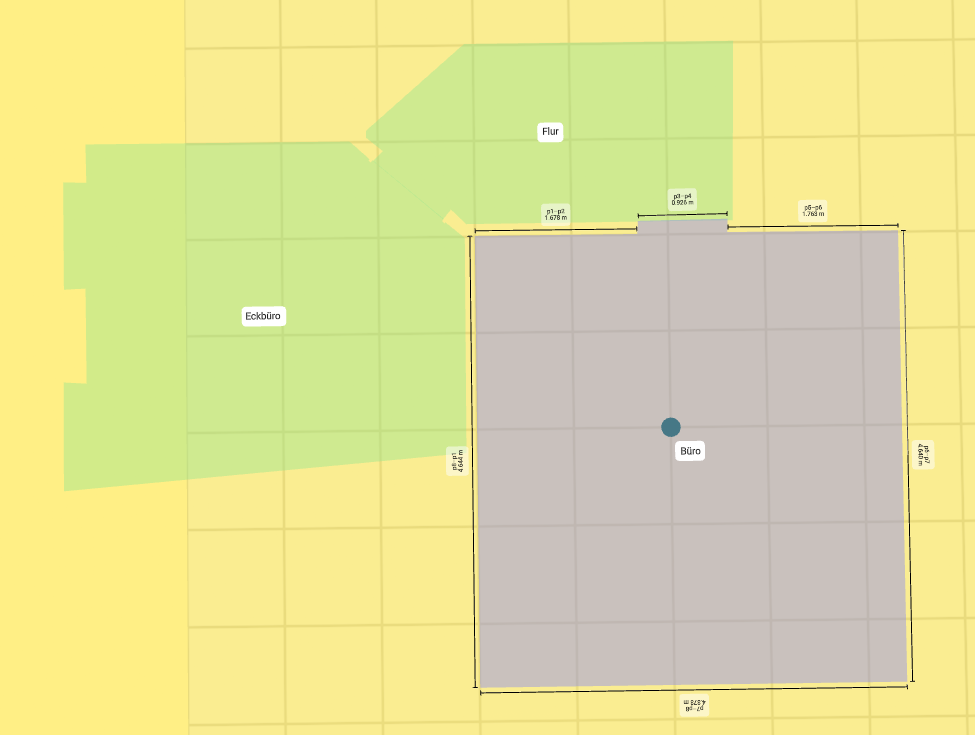
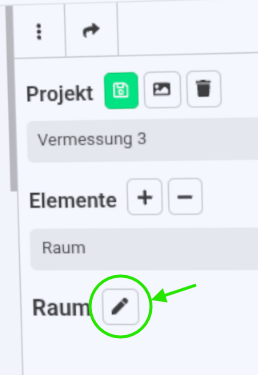
Tip: Give each room a different name to make it easier for you to find your way around.
Advantages:
- Separate data for each room
- Different room heights and floor levels
- Visualisation of different floor coverings
Disadvantage:
- Slightly more actions to insert the rooms
Winter garden
Positioning with the standard controllers
With the Standard controller of the headset, you can position the conservatory with the green or yellow cylinders:
Positioning with the pen controller
With the Pen controller for precise measurement, you can position the conservatory exactly with the pen tip.