Devices for MR/VR use
The use of a VRplugin-autotooltip__default plugin-autotooltip_bigVirtual reality (VR)
Virtual reality (VR) is a computer-generated, interactive environment in which a person can fully immerse themselves. With the help of special devices such as VR glasses, the real world is completely replaced by a simulated one. The user experiences a three-dimensional, artificial environment that can appeal to all the senses./MRplugin-autotooltip__default plugin-autotooltip_bigMixed Reality (MR)
Mixed reality, often referred to as mixed reality, is a technology that combines the physical world with computer-generated elements in real time. In contrast to pure virtual reality, in which the user is completely immersed in a digital world, and augmented reality, in which digital elements are superimposed on the real world, mixed reality enables interaction between real and virtual objects. As a rule, the user sees the real world, recorded by cameras, as an image of their… headset is required or useful for some visualiser products (e.g. for room measurement or the display of products that can be configured in 3D).
We recommend the following devices for this purpose:
Inhaltsverzeichnis
MR/VR headset
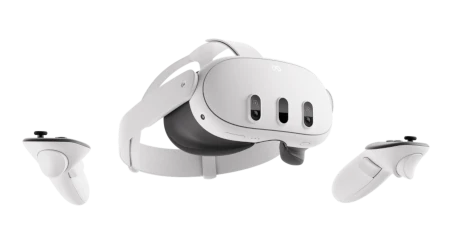 The headset shows you the virtual objects and takes over the tracking in the room. Objects that you place in the real world remain anchored in their position in the room for you through the headset. With the headset, you look with each eye through a lens system onto a display that shows the virtual content.
You can use the following as a mixed reality headset
1. the Meta Quest 3s, approx. 300 euros
2. meta quest 3, approx. 530 euros
We recommend buying the Meta Quest 3 (without s) for the following reasons:
- The lens system is significantly better. This gives you a larger sweet spot, i.e. the area in front of the lens where you can see the image clearly. With the Meta Quest 3s, this area is smaller and therefore the glasses have to sit more precisely in front of the eye. You can use the Quest 3 without the face cushion if you use a suitable head mount. Using them without the cushion has these advantages: no contact with the face, therefore more comfort, no sweating and better hygiene.
- Higher resolution: At 2,064 x 2,208 pixels per eye, the Quest 3 offers a higher display resolution (approx. 30 % more pixels) than the Quest 3s (1,832 x 1,920 pixels per eye).
- Infinitely variable lens adjustment (IPD): The pupil distance (IPD) of the Quest 3 can be infinitely adjusted from 58 mm to 70 mm, which enables a more precise adjustment and better visual comfort. The Quest 3s offers only three fixed levels.
- Slimmer design and wearing comfort: Due to the lens system, the Quest 3 is more compact and slimmer, which is often perceived as more comfortable, especially when worn for longer periods.
Where to buy: https://www.idealo.de/preisvergleich/OffersOfProduct/203285467_-quest-3-oculus.html
Head mount
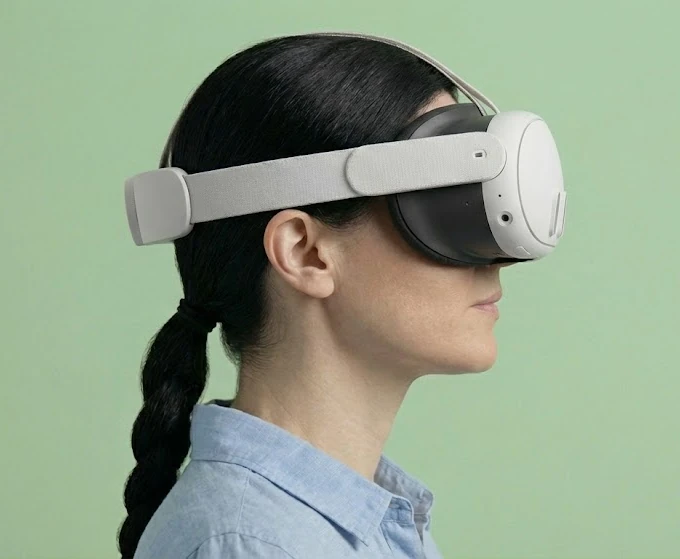 The headset comes with a head holder made from a fabric-like rubber band. This presses the headset with the face cushion onto the face. This is not comfortable.
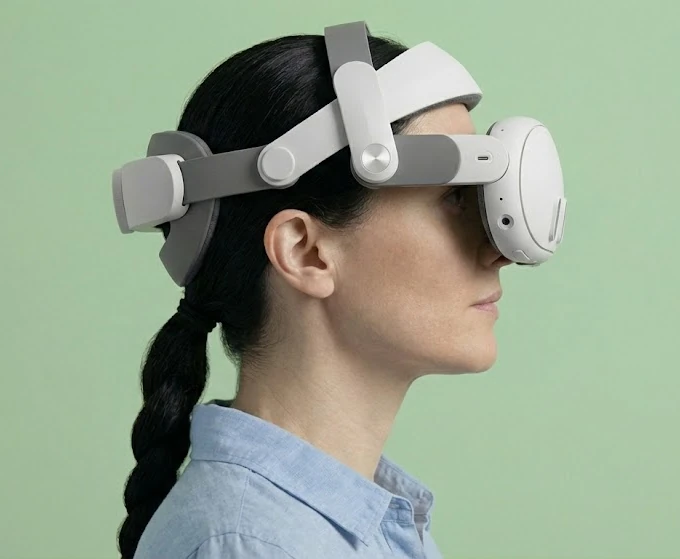 We recommend using a head holder that is attached between the forehead and the back of the head. This allows the face pad to be removed and the goggles then only hang in front of the face and are held in place by the headband. Without the face pad, nothing presses on your face. This makes you more comfortable, you sweat less and hygiene is better. It is also more comfortable for spectacle wearers and when handing the spectacles over to another person.
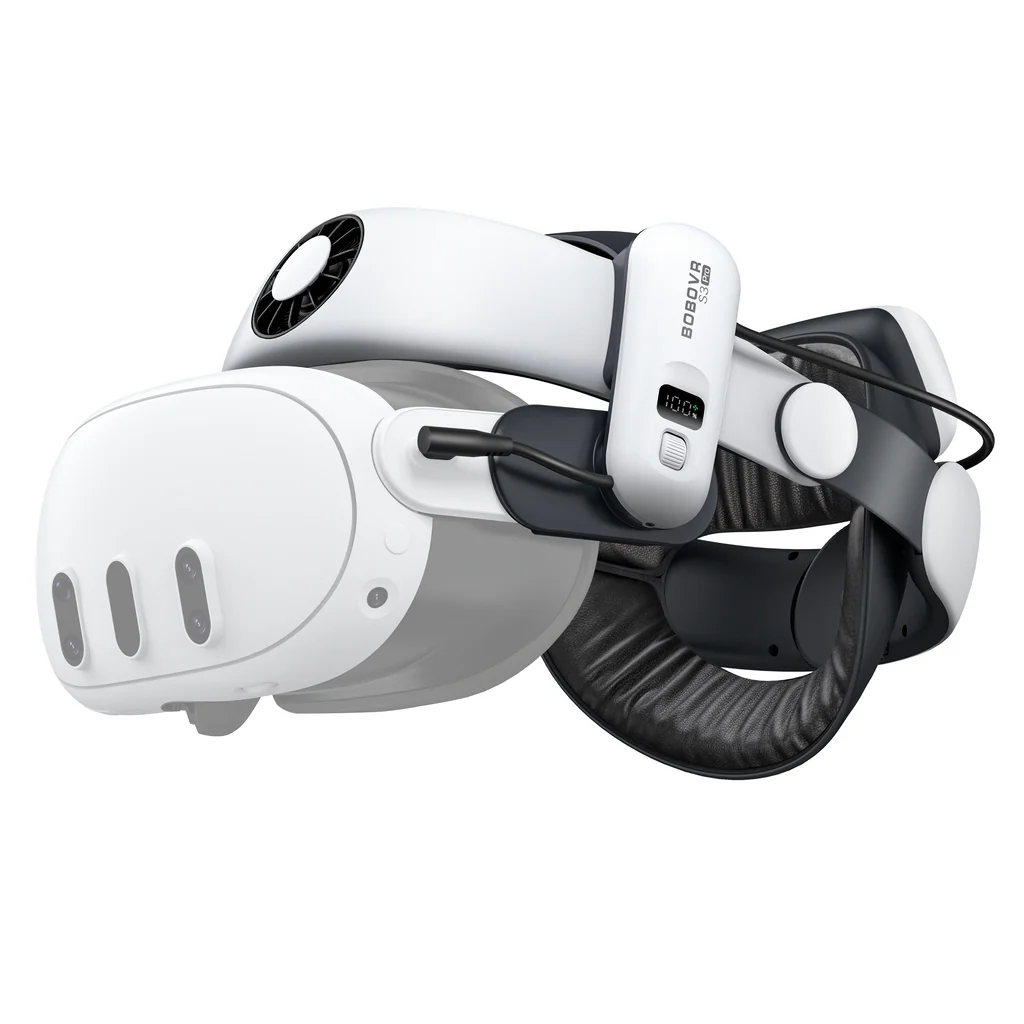 The headband is available in different versions. The cheaper version 'BoboVR M3' has a smaller battery and no fan. The version 'BoboVR S3 Pro' version has a larger battery capacity, allowing you to work with the headset for up to 4 hours. The battery is attached via a magnetic catch and can be replaced very easily during operation.
Please note that the battery systems of the two product variants are different. You should therefore decide in favour of one variant and stick with it when purchasing additional headsets.
Where to buy:
We recommend the BoboVR S3 Pro headband.
Pen controller
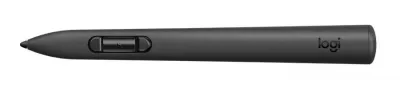 The Pen controller is used for all measurement projects. It replaces one of the standard controllers. visualiser tools that can be operated with the Pen controller generally only require this one controller. This is useful for measuring tools, for example, as you then have the other hand free to hold a laser measuring device, for example.
Source of supply: Logitech
Laser measuring device
When creating a measurement, you can use a laser measuring device for better accuracy of up to +/- 1.5 mm. Laser measuring device use a laser measuring device. The following laser measuring devices are supported:
Your device is not supported? Let us know which Bluetooth-enabled device you are using at support@vrdoro.com and we will support it as quickly as possible.