This is an old revision of the document!

Laser measurement
Benefit
With the laser measurement tool, you can use a Laser measuring device can be used to carry out measurements and transfer the data to your project.
Requirements
- You have a tool in which the laser measurement auxiliary tool is used. You will therefore see the icon
 icon in the MRplugin-autotooltip__default plugin-autotooltip_bigMixed Reality (MR)
Mixed reality, often referred to as mixed reality, is a technology that combines the physical world with computer-generated elements in real time. In contrast to pure virtual reality, in which the user is completely immersed in a digital world, and augmented reality, in which digital elements are superimposed on the real world, mixed reality enables interaction between real and virtual objects. As a rule, the user sees the real world, recorded by cameras, as an image of their… menu - You have Position markers set
- You have a Laser measuring device
- You have another device (a notebook or smartphone) with which you can connect the laser measuring device via Blue-Tooth
Connecting the laser measuring device
In order to be able to explain the measurement in more detail, we will assume a Room measurement with the corresponding vrdoro tool. Open your room measurement project on your notebook or smartphone. Measurements in other tools are carried out accordingly.
On the right (at the bottom of the smartphone) in the information bar, you will see a note on the use of MRplugin-autotooltip__default plugin-autotooltip_bigMixed Reality (MR)
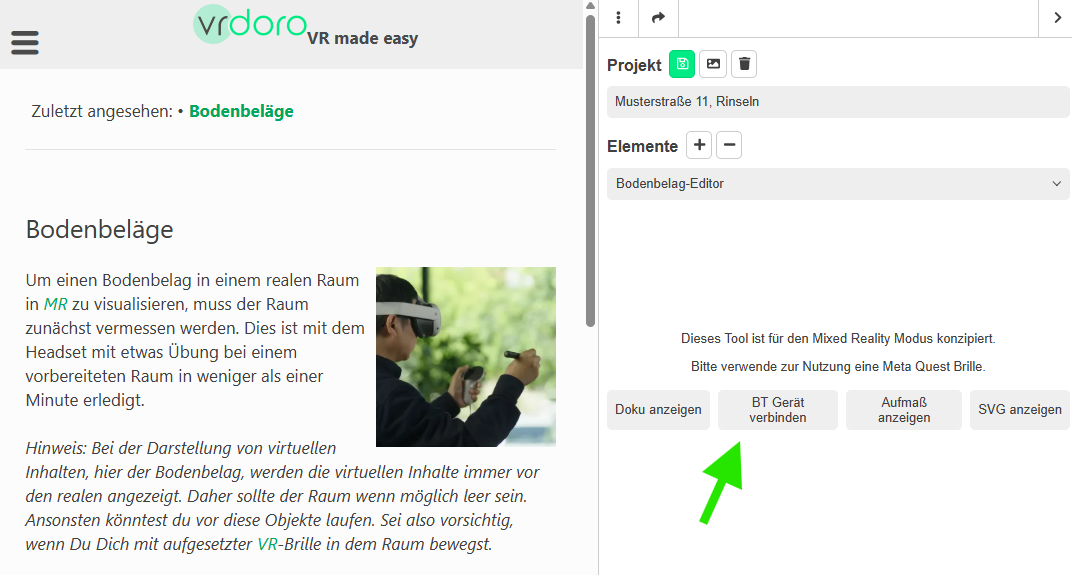
Mixed reality, often referred to as mixed reality, is a technology that combines the physical world with computer-generated elements in real time. In contrast to pure virtual reality, in which the user is completely immersed in a digital world, and augmented reality, in which digital elements are superimposed on the real world, mixed reality enables interaction between real and virtual objects. As a rule, the user sees the real world, recorded by cameras, as an image of their… glasses (This tool is designed for mixed reality mode. Please use Meta Quest glasses to use it.) you will see a button labelled Connect BT device (see green arrow).
Clickplugin-autotooltip__default plugin-autotooltip_bigClick
Depending on the device, clicking is the user's action to select an element. On devices with a mouse, this means pointing at the element and pressing the left mouse button. For devices with a touchscreen, it is touching or touching and holding (iOS: long touch). In theing on the button opens a dialogue that searches for devices with the properties required to perform a measurement. The devices found are displayed there. Some devices are only displayed with the device ID and not with their name.
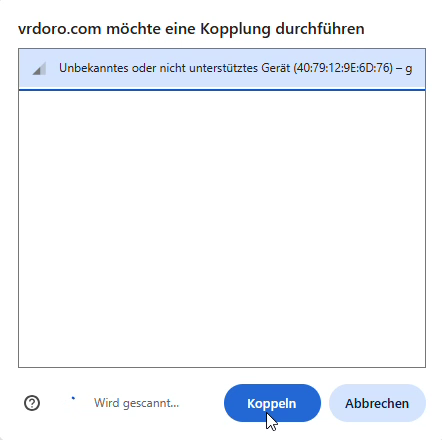
Select the device there and confirm with Pair. The Laser measuring device acknowledges the successful connection with a beep.